
Architect Studio
Configure your AI Agent by talking to it.
Tell the AI configurator what your Agent should do. Review its saved settings and visual workflow beside the conversation, then test your draft before publishing.
Choose an Agent, then select Architect Studio.
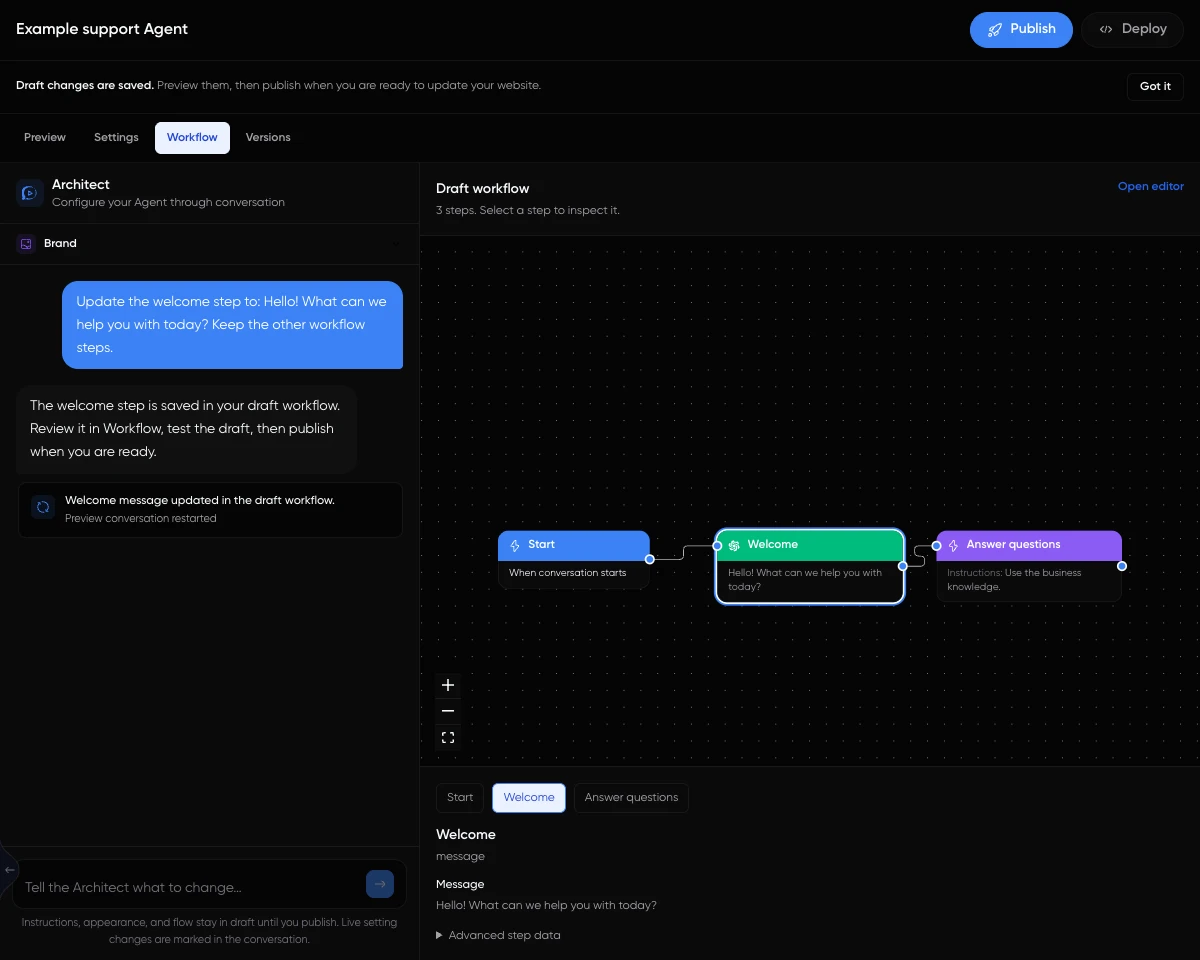
From request to reviewed configuration
Start with a small, specific request you can check:
“Update the welcome step to: Hello! What can we help you with today? Keep the other workflow steps.”
An example configuration request, not a customer transcript.
Choose the Agent you want to configure
Open an Agent in your Workspace and select Architect Studio. Each Agent has its own configuration conversation, so check its name before requesting a change.
Describe one change in plain language
Ask for a specific instruction, appearance setting or workflow edit. For an opening message, name the workflow step you want to update. A message in the active workflow can take precedence over the fallback welcome text.
Inspect the saved result
Settings shows the current fields. Workflow shows the steps, connections and selected step details. Versions shows the draft, published configuration and saved Architect changes. Check the result alongside the configurator's reply.
Test the draft, then publish
Try a fresh preview conversation and follow the changed path. Workflow edits restart the draft preview. When ready, publish the draft instructions, appearance and workflow, then check a new conversation in your installed website widget.
Know what is draft and what is live
A saved change is worth checking at the field level. Studio identifies draft and live settings, so you can decide what to test and what to publish.
- Draft changes
- Instructions, appearance and workflow wait for Publish. Review the draft preview before applying them to visitors.
- Live settings
- Knowledge sources, Agent name, booking links and notification recipients take effect immediately. Model-context personality, response style and language are live too. For a tone request, check whether Studio changed draft instructions or a live model-context field.
Studio works alongside the visual workflow builder and your knowledge base. For the broader setup process, see the AI Agent Builder.
Architect Studio questions
Open any of your Agents in the LoopReply dashboard and select Architect Studio. Start by choosing the Agent you want to configure, rather than looking for a separate Workspace-wide configurator.
No. The configuration conversation works with the selected Agent. If you manage several Agents, open the one you want to change before using Studio. The configurator is for Agent setup and configuration, not a general-purpose assistant for unrelated questions.
Yes. You can ask for a targeted change to an existing step's text or label. Inspect the saved step and connections in Workflow, then test the draft. Open the full visual workflow editor when you want to work directly on the diagram.
No. Instructions, appearance and workflow use drafts. Knowledge sources, the Agent name, booking links, notification recipients, and model-context personality, response style and language are live settings. Check which field changed before assuming it is waiting for Publish.
Versions shows the stored draft and published configuration plus a record of saved Architect changes. It is not an archive of restorable historical snapshots. Use it to understand what changed and compare the current saved states.
Yes. Connect supported documents, spreadsheets, websites or database sources to the Agent, then check their processing status. A source must finish processing before its contents can support answers. Test known answers and missing-information behavior before relying on it with visitors.
Need help with your configuration? Talk to the LoopReply team.