
Before publishing an Architect Studio change, inspect the saved field, check the affected workflow step, and test the draft. A confirmation in the conversation tells you what the configurator saved. The surrounding panels help you review what visitors will experience.
Here is a small worked example: change an Agent's opening message while keeping its other workflow steps. The screenshots show LoopReply's actual interface with illustrative demo data. The sample conversation is not a customer transcript or a measured AI result.
Ask for one specific change
Open the Agent you want to configure, then select Architect Studio. Keep the request narrow enough that you can check its result:
Update the welcome step to: Hello! What can we help you with today? Keep the other workflow steps.
Naming the step matters. A workflow message can supply the opening message instead of the fallback welcome text stored in appearance. Changing that fallback alone may leave the greeting in your active workflow unchanged.
The Architect can update an existing workflow step's text or label without rebuilding the whole flow. After a workflow change, the draft preview conversation restarts. That gives you a fresh starting point for checking the new opening message.
Check Settings for live and draft fields
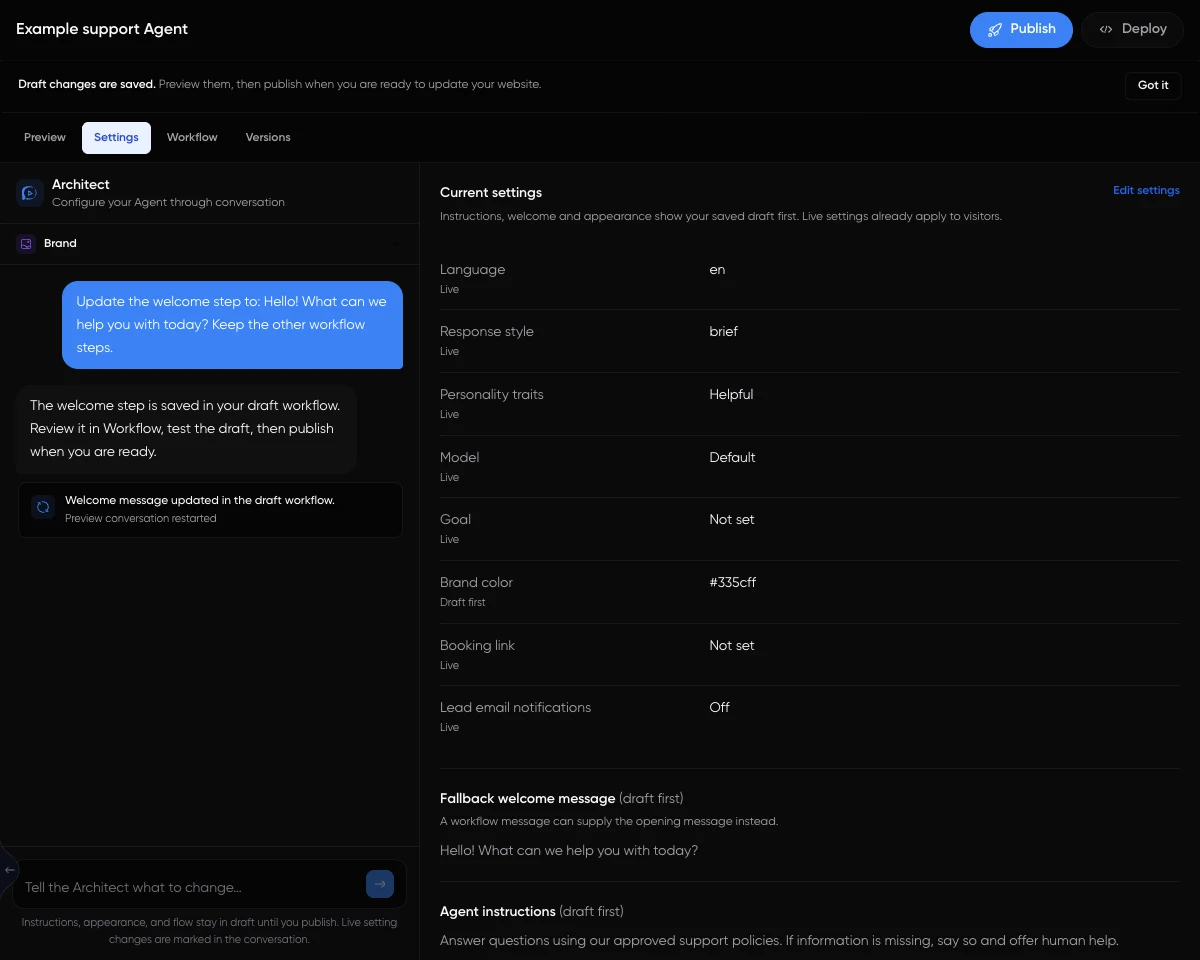
Select Settings alongside the configuration conversation. Instructions, welcome text, and appearance display their saved draft values first. Other rows identify live fields, including language and response style.
In this example, the request targets a workflow message. If a request instead changes model-context language, response style, or personality traits, those settings take effect immediately. Wording saved inside draft instructions waits for Publish. A request such as “make it friendlier” is therefore worth checking at the field level.
Knowledge sources, the Agent name, booking links, and notification recipients are also live settings. Do not treat the entire Agent as an isolated draft just because its workflow has unpublished changes.
Inspect the selected workflow step
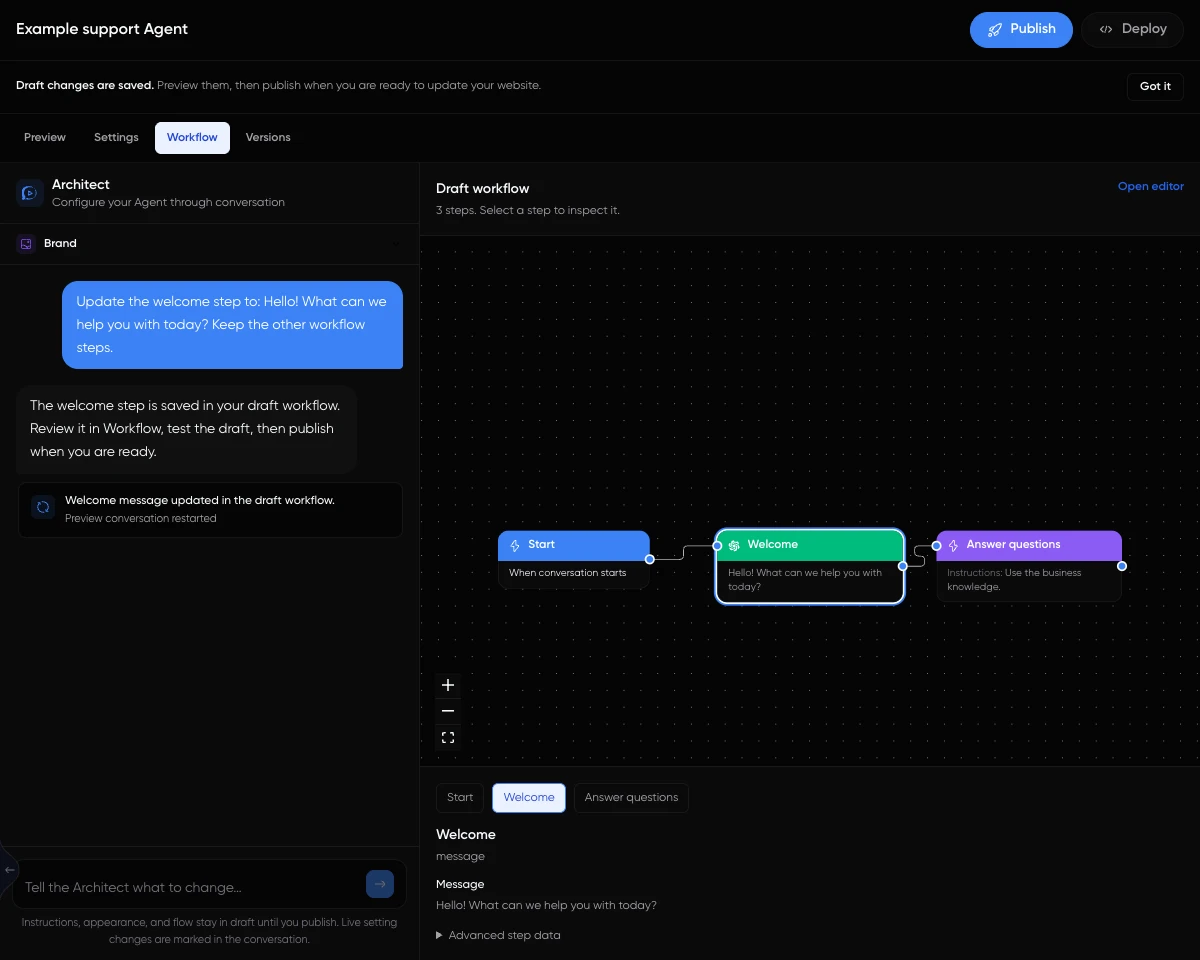
Select Workflow, then select the welcome step in the diagram or the step list. Read the saved message in the details below the diagram. In our example, it should match the requested greeting exactly.
Check the surrounding connections too. The welcome step should still lead to the intended next step. An updated message is useful only if a visitor's conversation actually reaches it. Use Open editor when you need the full visual workflow editor.
Keep a simple acceptance checklist:
- The intended step contains the new message.
- Unrelated steps remain in place.
- The opening path leads to the right next step.
- A fresh preview displays the intended greeting.
Read Versions before publishing
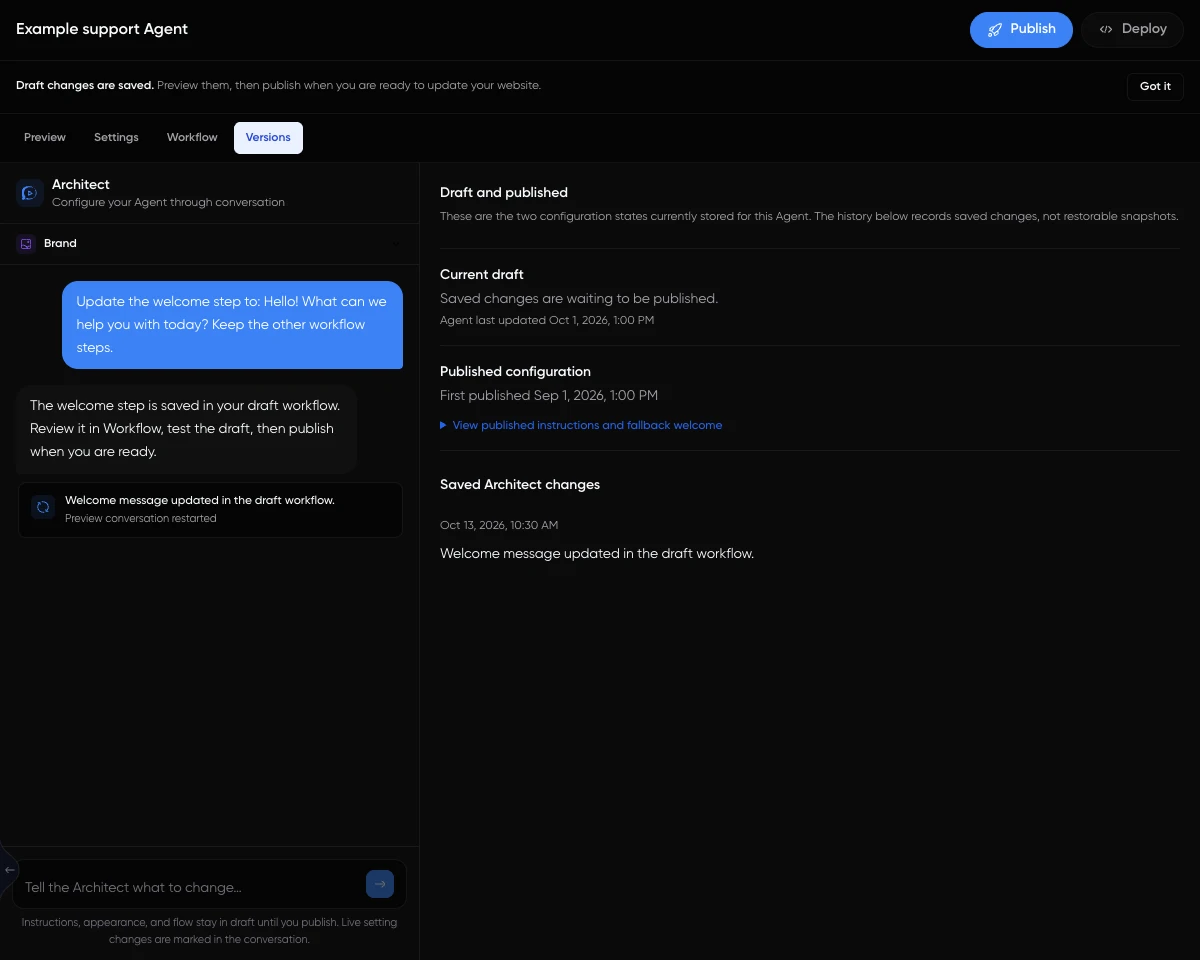
Select Versions to inspect the current draft, the published configuration, and saved Architect changes. You can expand the published instructions and fallback welcome for comparison.
The saved-change list is a record of changes, not a library of restorable historical snapshots. It helps explain what was saved, but it should not be treated as an undo button for every previous configuration.
Test the draft, then check the website
Return to Preview and start from the beginning. Confirm the opening message, ask a normal support question, and try an unrelated request. If your Agent is intended only for business support, check that it redirects the unrelated request appropriately.
When the draft behaves as intended, use Publish to apply the draft instructions, appearance, and workflow. Then open the installed widget on your website and test a new conversation. Publishing a draft and confirming the real visitor experience are separate checks.
If the greeting is still wrong, inspect which message the workflow reaches before changing more settings. If a factual answer is missing, check the source's readiness using the knowledge troubleshooting example. For the broader configuration boundaries, see LoopReply product facts.
Keep the review connected to the launch
If the draft behaves correctly but the website does not, compare the published Agent and installed identifier using the website installation guide. If the answer is missing a fact, check source readiness before editing unrelated workflow steps. These checks separate a configuration change from a deployment or knowledge problem.